


Mon Dec 01 2025
Fixing Excel Run-time Error 57121: Application-defined or Object-defined Error
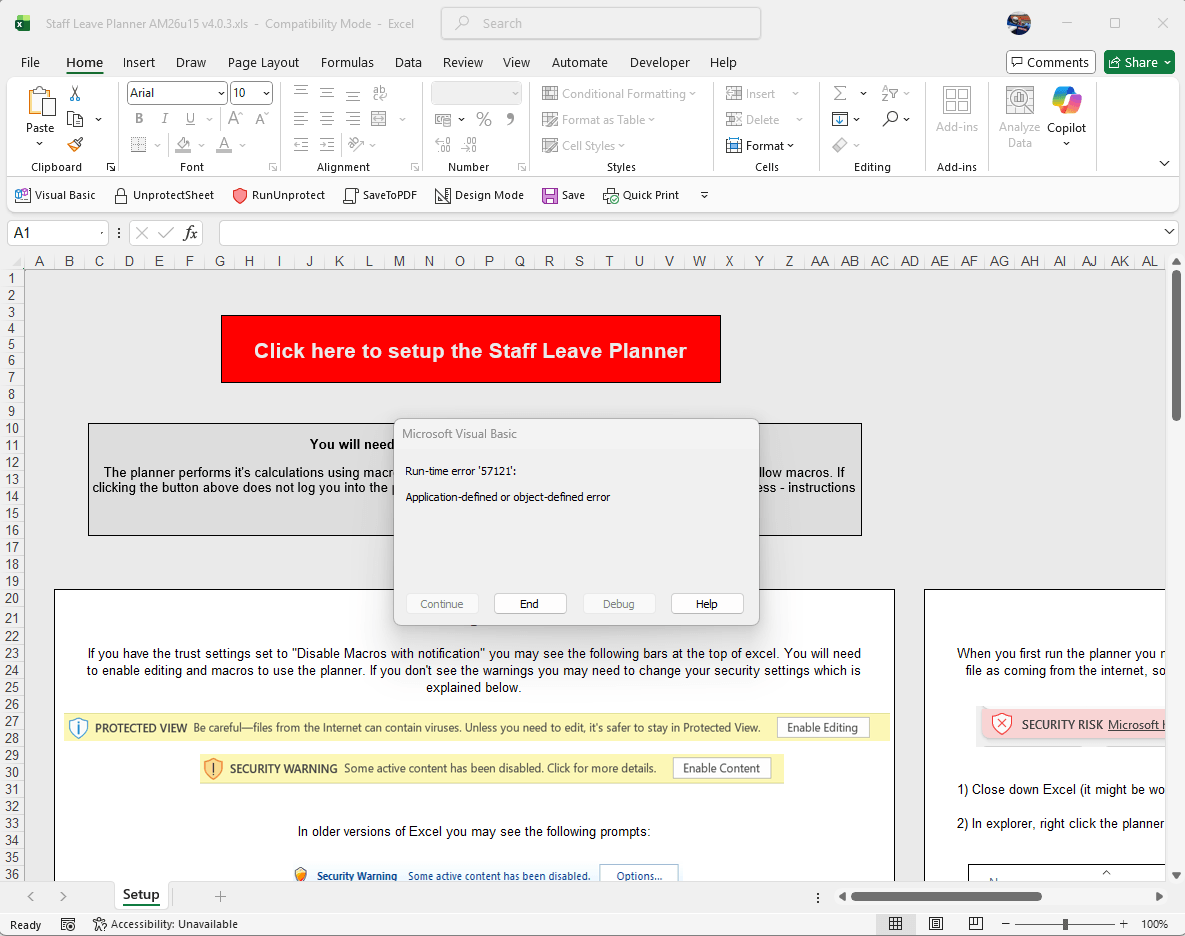
Recent Excel security setting changes mean that if you have an Excel workbook that uses macros and in-built ActiveX components such as command buttons, comboboxes, check boxes etc, you may find that you encounter a VBA Runtime error ‘57121’: Application-defined or object-defined error despite having macros enabled.
Users of the Excel Leave Planner may also be seeing this error message.
Understanding the Error
This error occurs when Excel’s Trust Center settings block ActiveX controls from initializing properly. Even though you may have enabled macros, the ActiveX controls (buttons, dropdown menus, etc.) cannot function without the correct security settings.
Trust Center Settings for the 57121 Error
You need to ensure that you have the appropriate settings enabled in your Trust Center.
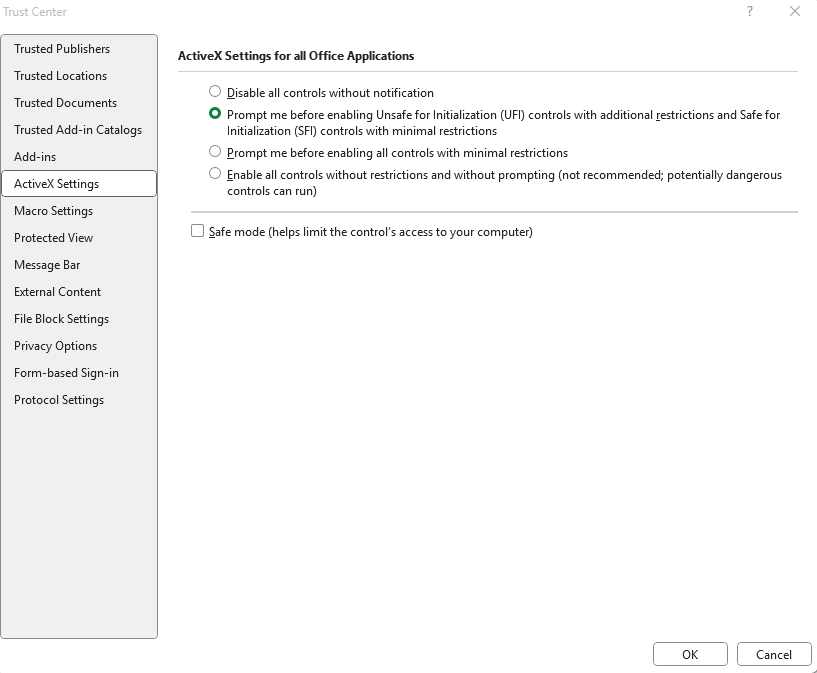
We recommend setting the value “Prompt me before enabling Unsafe for Initialization (UFI) controls with additional restrictions and Safe Initialization (SFI) controls with minimal restrictions”. This ensures that safe inbuilt Excel ActiveX controls (which our leave planners use) will be activated, whilst other third party controls will require you to authorise them.
Step-by-Step Solution
To apply this setting:
- Click on File > Options
- Navigate to Trust Center > Trust Center Settings
- Select ActiveX Settings
- Choose the option “Prompt me before enabling Unsafe for Initialization (UFI) controls with additional restrictions and Safe Initialization (SFI) controls with minimal restrictions”
- Click OK > OK and then close Excel completely
- Reopen the workbook for the settings to be applied
ActiveX Settings in Excel - What They Actually Do
ActiveX controls are small components (often buttons, list boxes, calendars, etc.) that can run code inside Excel. They can be powerful but also potentially unsafe if they come from an untrusted source. The Trust Center settings determine whether Excel allows these controls to load and run, and whether you get warnings.
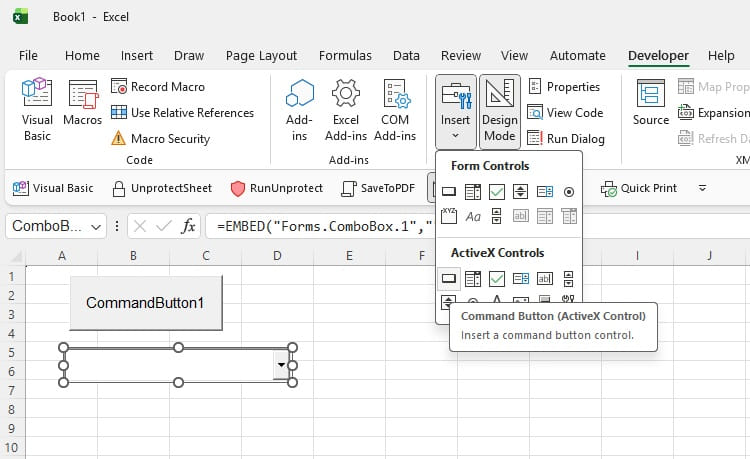
Below is a breakdown of the main settings:
1. Disable all controls without notification
Excel blocks every ActiveX control automatically and does not warn you. This is the safest option but it also means any worksheets that rely on buttons or embedded controls will not work.
When to use: Maximum security environments where ActiveX controls should never run.
2. Prompt me before enabling UFI controls and allow SFI controls (Recommended)
This is the default setting. Excel allows controls that are considered safe and asks for your permission before running anything that could behave unpredictably. It offers a good balance between security and usability.
When to use: Most business environments where you use trusted Excel workbooks with built-in controls.
3. Prompt me before enabling all controls
Excel treats every ActiveX control as potentially risky. You will see a prompt each time a workbook contains a control and nothing runs until you approve it. This gives you more control but can become repetitive.
When to use: When you want maximum control over which controls run, even if they’re marked as safe.
4. Enable all controls without restrictions (Not Recommended)
Excel runs every ActiveX control immediately with no warnings. This makes everything work smoothly but greatly increases the risk of running unsafe or malicious components.
When to use: Only in tightly controlled environments where all workbooks are known to be safe.
What Controls Count as Safe for Initialization (SFI)
Microsoft classifies an ActiveX control as Safe for Initialization (SFI) when:
- It does not execute harmful operations during startup
- It does not change files, registry entries or system settings
- It exposes only safe methods and properties
- It can be safely loaded with untrusted data
Typical Examples of SFI Controls
These examples are based on Microsoft’s published guidance for COM/ActiveX developers:
- Simple UI elements such as basic list boxes or option buttons that do not run code on initialization
- Controls that only read data but do not write to the system
- Controls that declare themselves safe using Microsoft’s COM safety interfaces
Additional Troubleshooting Tips
If you’ve applied the settings above and still encounter the error:
- Restart Excel completely - Settings don’t apply until Excel is fully closed and reopened
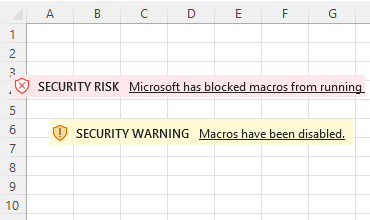
- Check macro security - Ensure macros are enabled (File > Options > Trust Center > Macro Settings)
- Unblock the file - Right-click the file, select Properties, and click “Unblock” if the option appears
- Move to trusted location - Place the workbook in a Trusted Location (configured in Trust Center)
- Check for Office updates - Ensure you have the latest security updates installed
Conclusion
The Excel Runtime error 57121 is primarily a security-related issue that can be resolved by adjusting your Trust Center settings. By choosing the recommended setting that allows Safe for Initialisation controls while prompting for unsafe ones, you’ll maintain both security and functionality.
If you’re using our Excel Staff Leave Planner, these settings will allow all the built-in controls to work properly while still protecting you from potentially harmful third-party ActiveX components.
Need more help? Contact our support team for assistance with Excel-related issues.
Popular Articles


2026 Planners are here!
David Hartley